Control Panel
After purchasing an instance and installing an OS, you can view and manage your VPS through the control panel.
Accessing the Control Panel
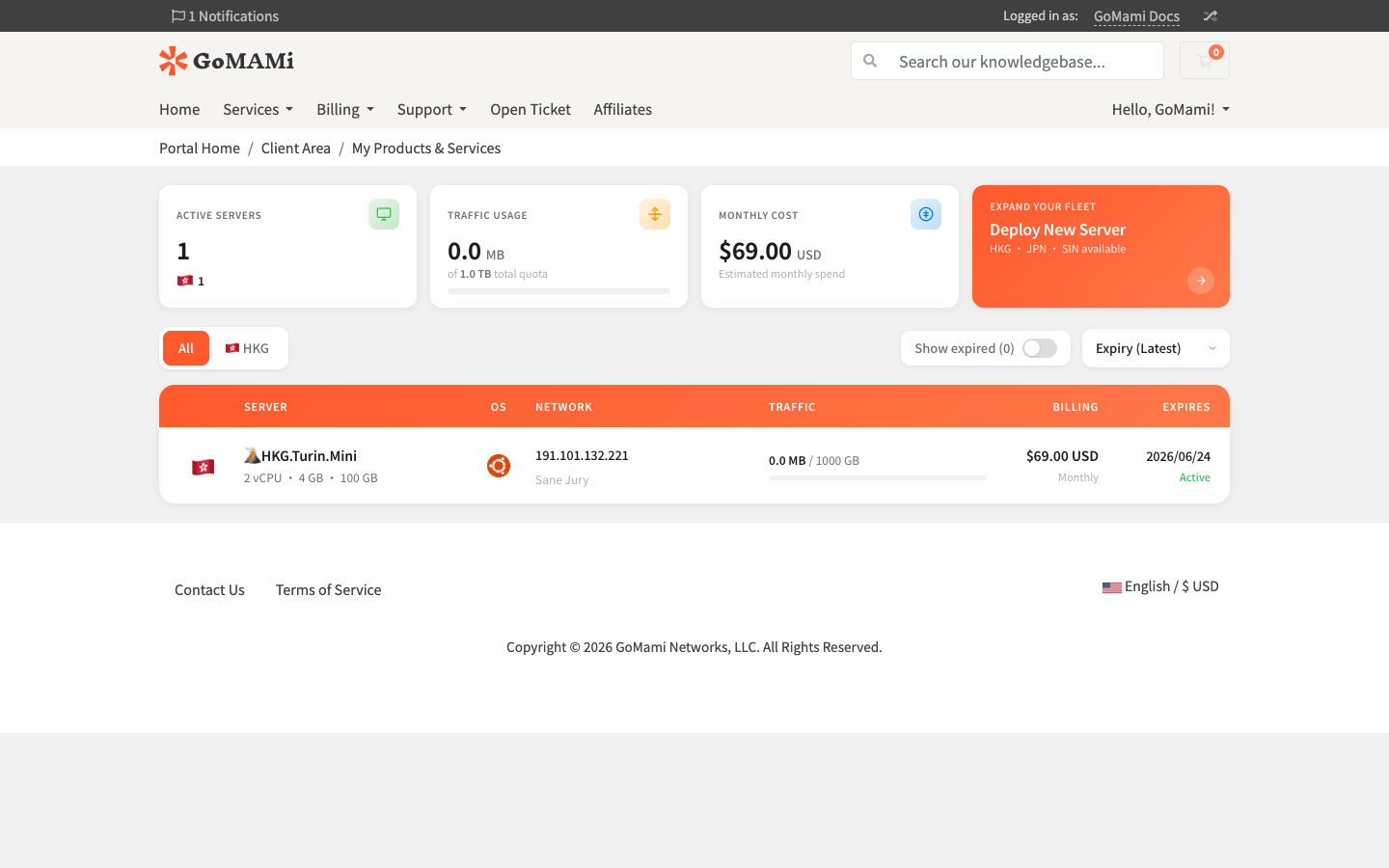
- Log in to GoMami
- Go to Services > My Services
- Click your instance in the server list
Panel Overview
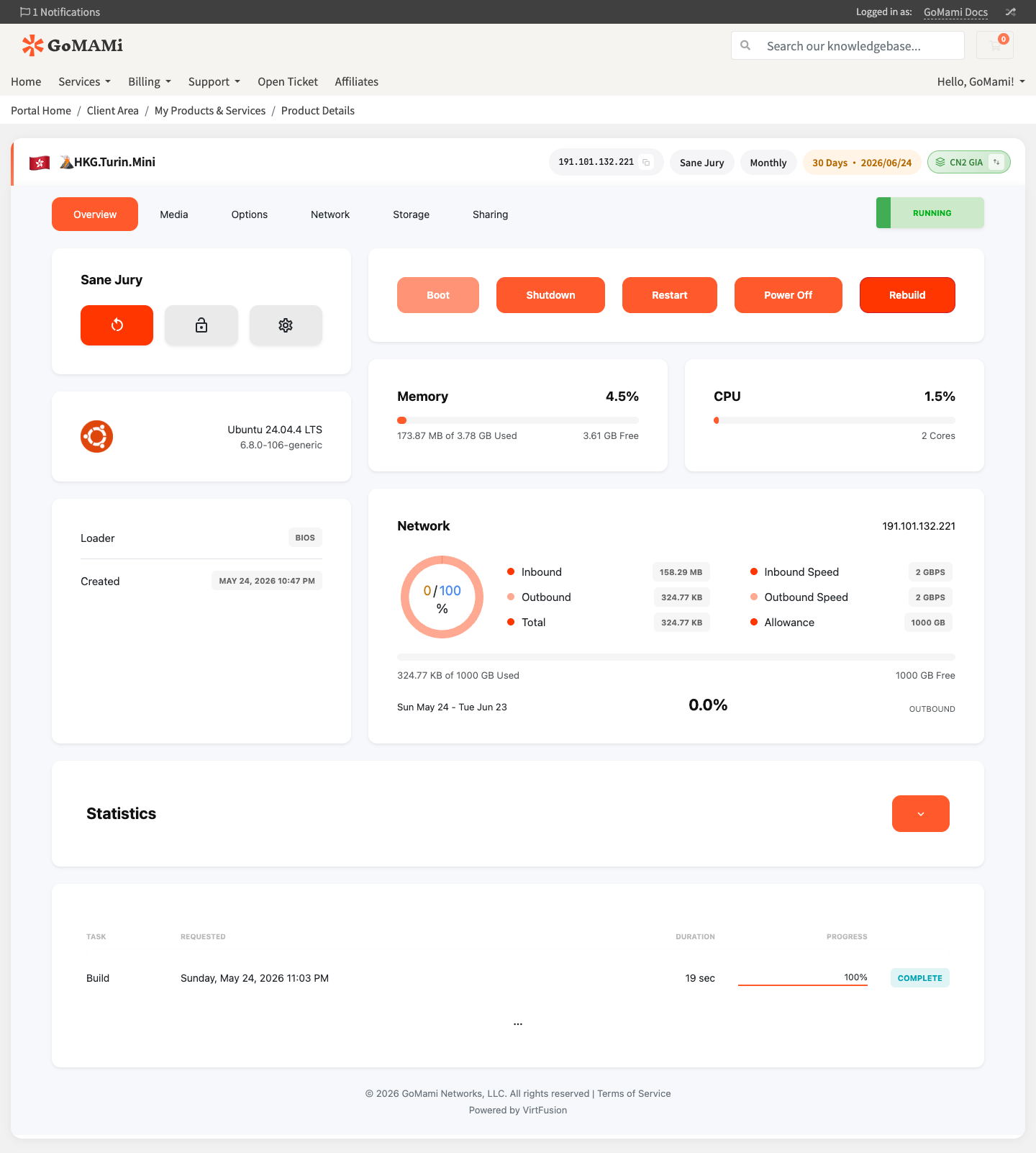
The control panel is built on VirtFusion, providing an intuitive server management interface. The top displays the server name, IP address, billing cycle, expiration date, and network type.
Navigation Tabs
The control panel provides the following tabs:
| Tab | Function |
|---|---|
| Overview | Server overview, resource monitoring, task history |
| Media | CD/DVD mounting, boot order settings |
| Options | VNC console, rescue mode, password reset, server settings |
| Network | Network interfaces, IP addresses, reverse DNS, DNS resolvers |
| Storage | Disk management, backups |
| Sharing | Server shared access management |
Server Information
The Overview tab displays:
- Status — Current server state (RUNNING / STOPPED)
- IP Address — IPv4 address
- Operating System — Current OS and kernel version
- Loader — Boot method (BIOS)
- Created — Server creation date
Resource Monitoring
- Memory — Memory usage and available space
- CPU — CPU usage and core count
- Network — Inbound/outbound traffic, bandwidth speed, traffic quota usage
Power Controls
Quick power action buttons at the top of the panel:
- Boot — Start the server
- Shutdown — Graceful shutdown
- Restart — Restart the server
- Power Off — Force power off
- Rebuild — Reinstall the OS
Quick Actions
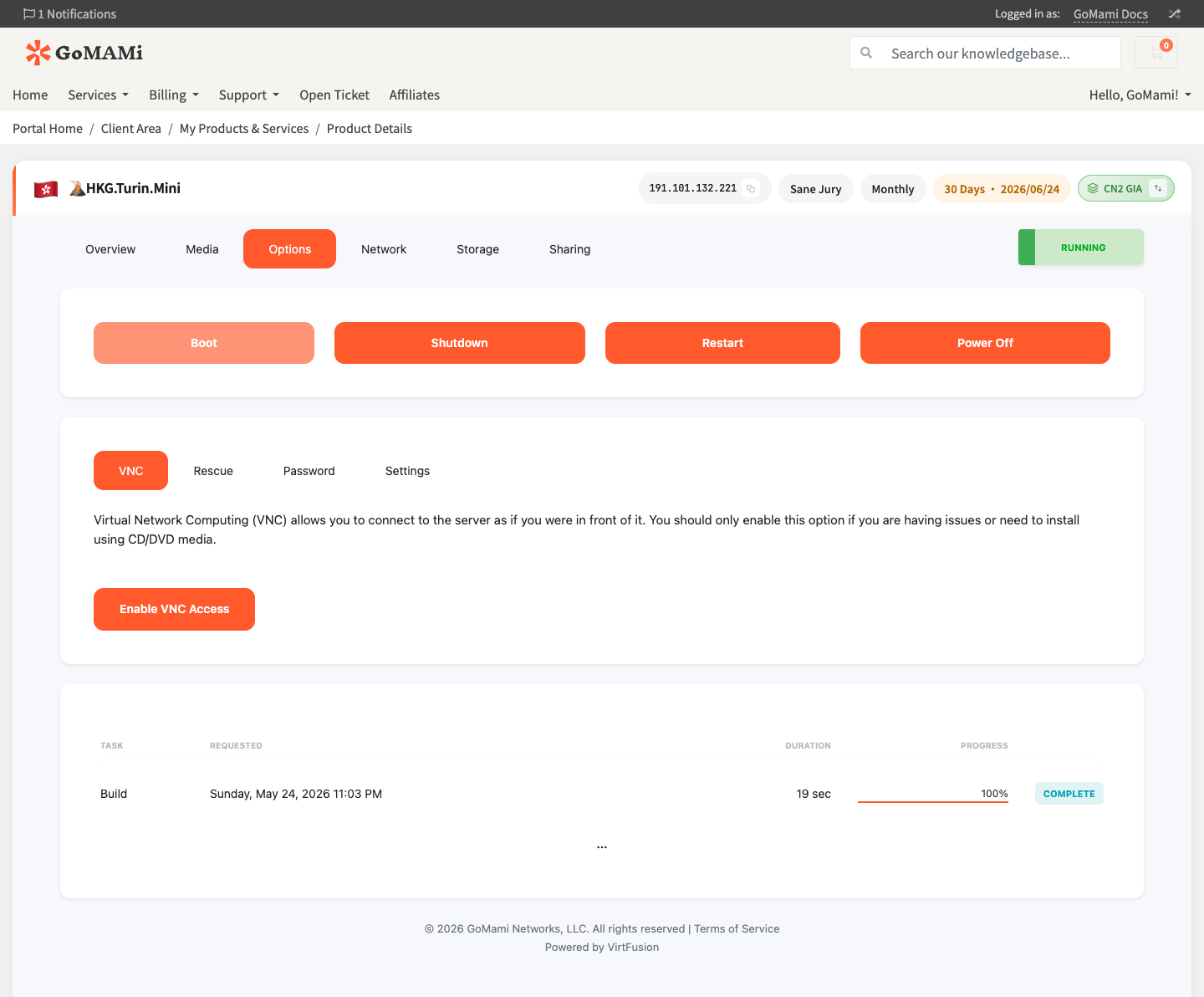
In the Options tab, you can perform:
- VNC Console — Remote server access via browser
- Rescue Mode — Enter rescue environment to repair system
- Reset Password — Reset root/admin password
- Server Settings — Modify server name and hostname