Reinstall OS
Reinstalling allows you to change or reinstall your server's operating system, restoring the instance to a fresh state.
Steps
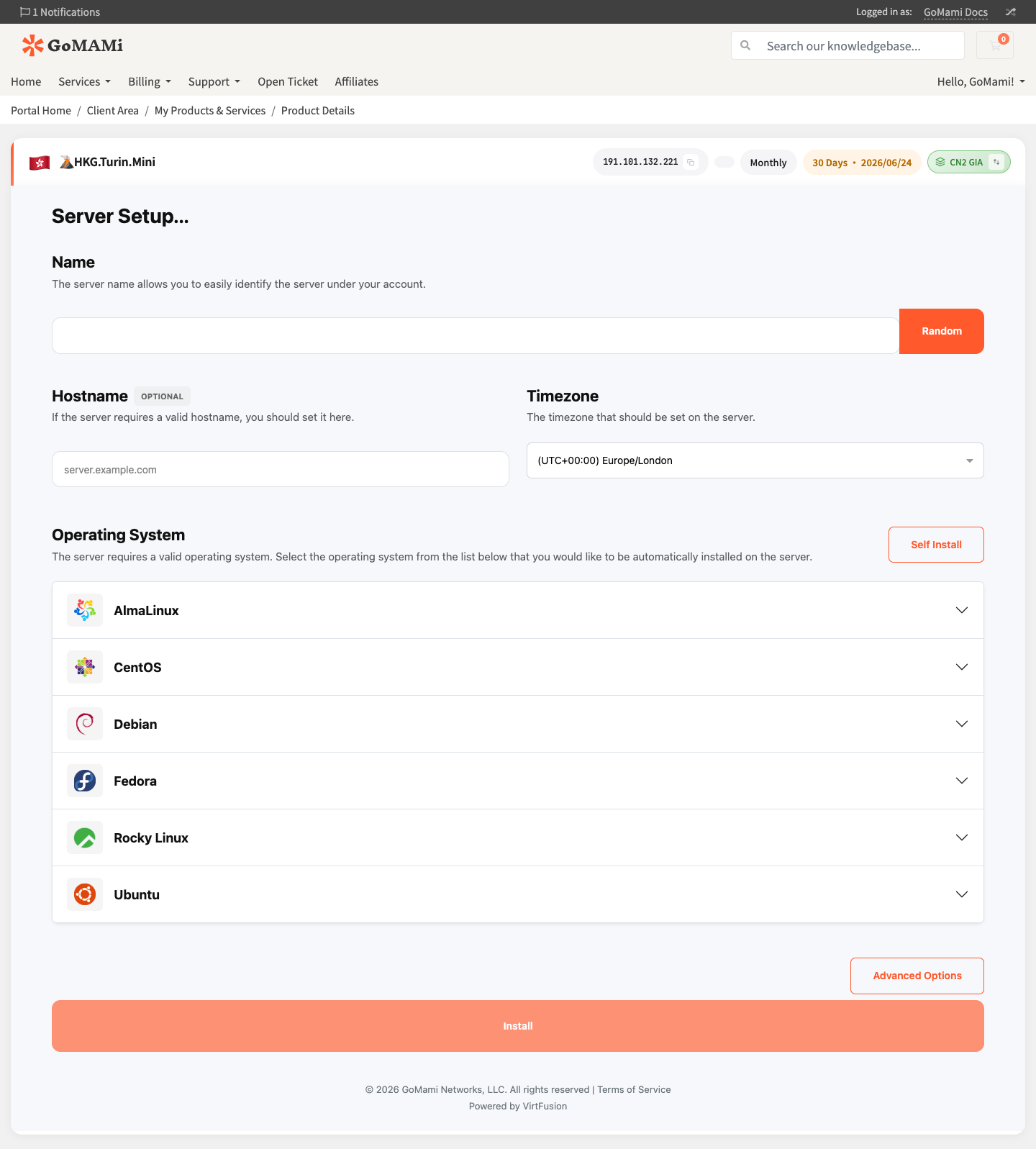
- Log in to GoMami, go to the server control panel
- Click the Rebuild button at the top
- Enter the server name
- Select the operating system and version to install
- Optionally configure hostname, timezone, Swap space, SSH keys
- Click Install to confirm
caution
Reinstalling will permanently delete all data on the server, including files, databases, and configurations. This action is irreversible — please back up important data first.
Available OS Templates
| Operating System | Available Versions |
|---|---|
| Ubuntu | 20.04 LTS, 22.04 LTS, 24.04 LTS |
| Debian | 11 (Bullseye), 12 (Bookworm), 13 (Trixie) |
| CentOS | 7, Stream 9 |
| AlmaLinux | 9, 10 |
| Rocky Linux | 8, 9, 10 |
| Fedora | 41, 42 |
info
OS templates are updated periodically. Actual available versions are shown in the control panel.
Important Notes
- The server will automatically shut down before reinstalling
- Reinstallation typically takes 3-5 minutes
- The server will auto-start after reinstallation
- You'll need to use the newly set password to connect
- Previous SSH key authorizations will be cleared and need reconfiguration
tip
If you only need to fix system issues without losing data, try Rescue Mode first.
Via API
# Get available OS templates
curl -X GET https://cp.gomami.io/api/server/{id}/build/templates \
  -H "Authorization: Bearer <your_api_token>"

# Reinstall OS
curl -X POST https://cp.gomami.io/api/server/{id}/build \
  -H "Authorization: Bearer <your_api_token>" \
  -H "Content-Type: application/json" \
  -d '{
    "template_id": "<template_id>",
    "password": "<new_password>"
  }'