Reset Password
If you've forgotten your server's root password, you can quickly reset it via the control panel.
Steps
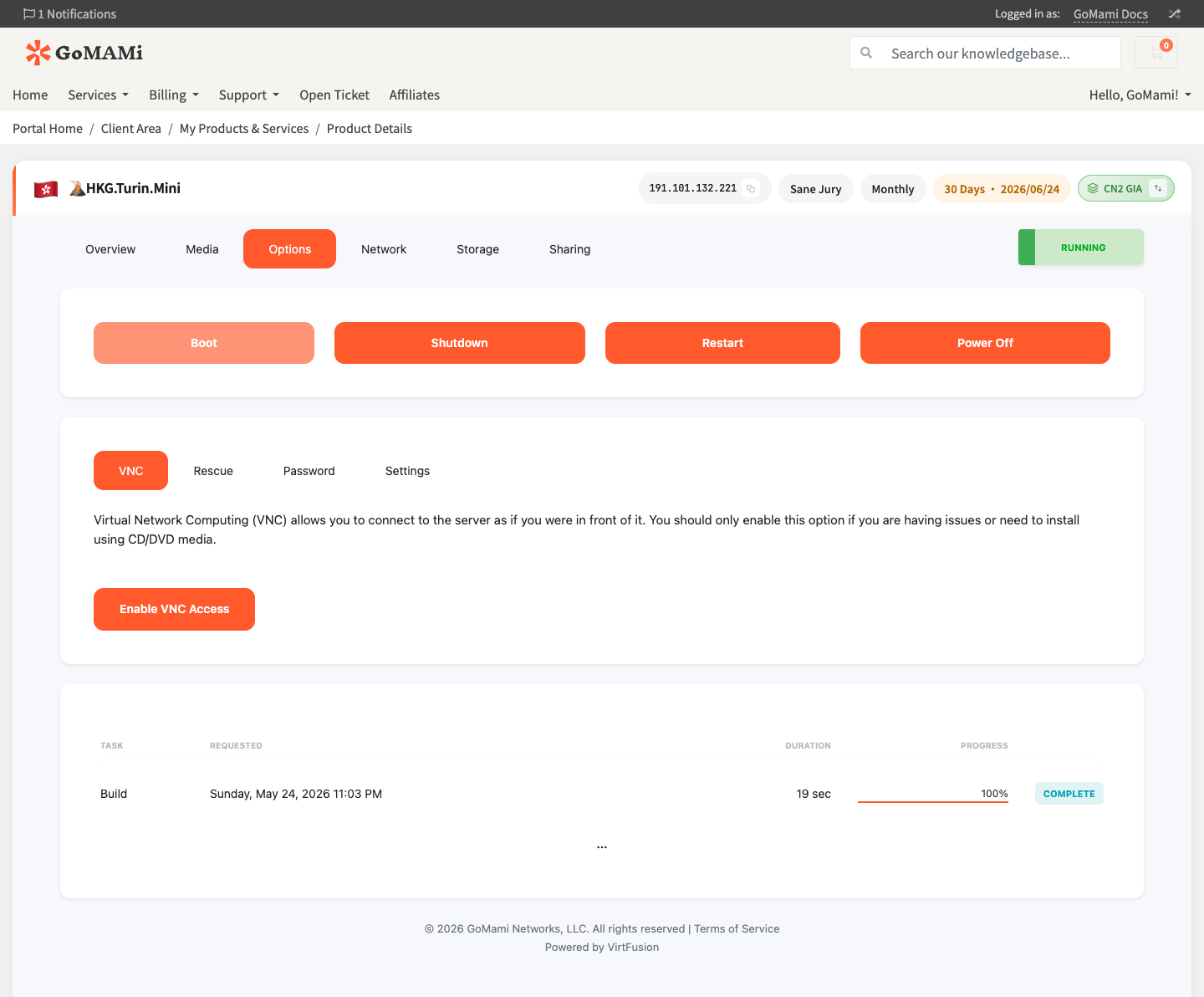
- Log in to GoMami, go to the server control panel
- Click the Options tab
- Select the Password sub-tab
- Choose the user to reset (root / Administrator)
- Click Reset to confirm. The new password will be sent to your account email
caution
Password reset requires the server to be running. If the server is off, start it first.
Password Requirements
For security, passwords should meet:
- At least 8 characters
- Include uppercase and lowercase letters
- Include numbers
- Special characters recommended
tip
We strongly recommend using SSH keys instead of passwords for login — more secure and no passwords to remember.
After Reset
After resetting:
- Connect via SSH with the new password:
ssh root@your_server_ip
- Enter the new password to log in
If Password Reset Doesn't Work
In some cases, panel password reset may not take effect immediately (e.g., if the OS has disabled password login). Try:
- Log in via VNC — Use the VNC console for direct access
- Use Rescue Mode — Manually change the password via rescue mode
- Reinstall OS — If nothing else works, reinstall the system
Via API
# Reset root password
curl -X POST https://cp.gomami.io/api/server/{id}/reset-password \
  -H "Authorization: Bearer <your_api_token>" \
  -H "Content-Type: application/json" \
  -d '{"password": "<new_password>"}'
Next Steps
- Manage SSH Keys — Set up SSH key login
- Security Hardening — Improve server security