VNC Console
The VNC console provides browser-based server access without relying on SSH.
When to Use VNC
- SSH service is not running or misconfigured
- Firewall rules are blocking SSH
- Need to view the server boot process
- OS boot is stuck and needs troubleshooting
- Network misconfiguration preventing remote access
Enabling VNC Console
- Log in to GoMami, go to the server control panel
- Click the Options tab
- In the VNC sub-tab, click Enable VNC Access
- The VNC console window will open for direct server interaction
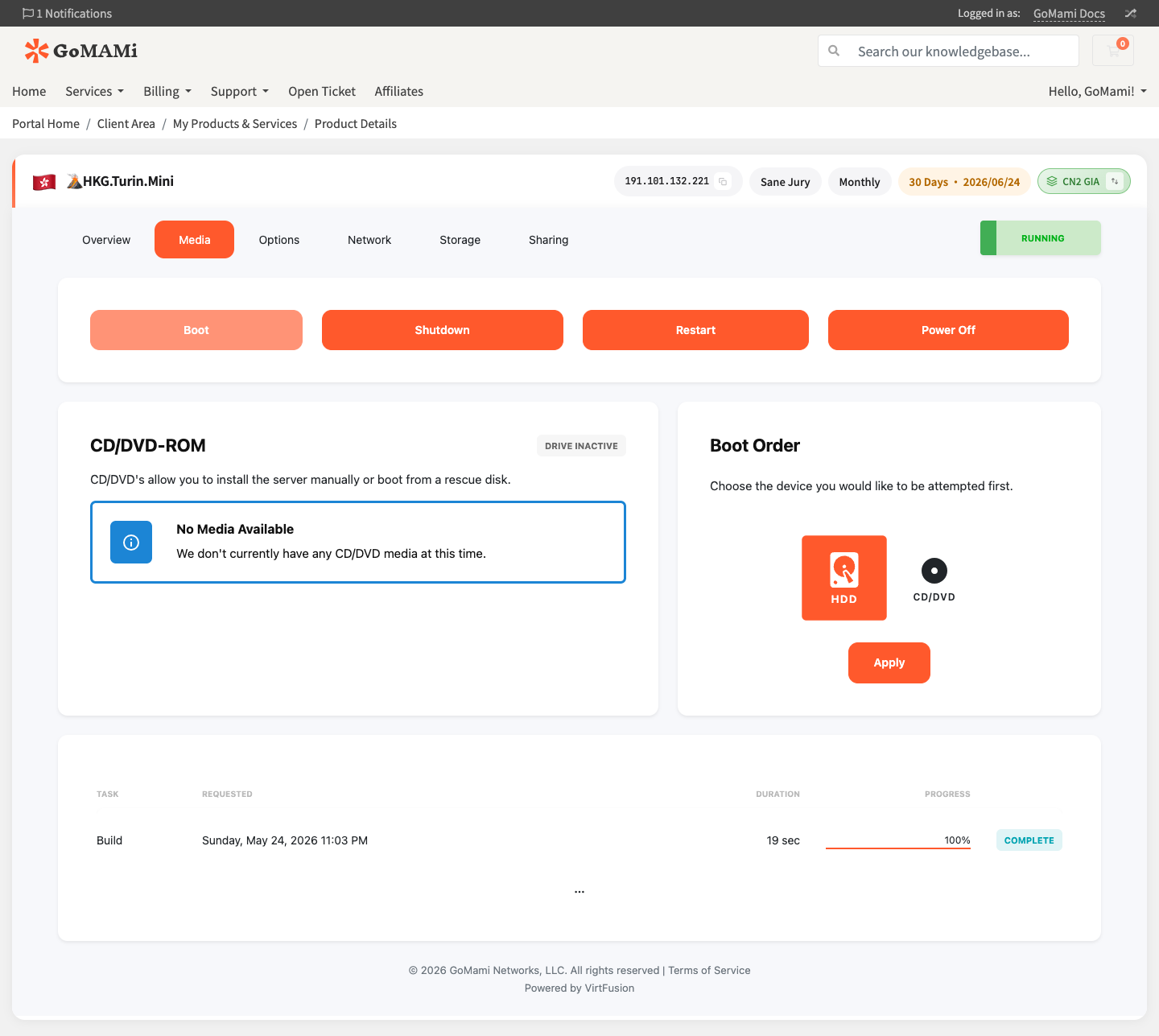
info
The VNC console connects directly to the server's virtual display and works even with broken network configuration.
VNC Settings
| Option | Description |
|---|---|
| Keyboard Layout | Choose a layout matching your physical keyboard |
| Resolution | Adjust VNC display resolution |
Usage Notes
- VNC responsiveness depends on network latency between you and the node
- Chrome or Firefox recommended for best experience
- Copy-paste functionality may be limited; use SSH for daily operations
- Close VNC when not in use to avoid unnecessary resource consumption
tip
VNC is primarily for emergency troubleshooting. For daily management, use SSH for a smoother experience.
Closing VNC Console
When finished, return to the control panel and click Disable VNC to close the session.
Via API
# Enable VNC
curl -X POST https://cp.gomami.io/api/server/{id}/vnc/enable \
  -H "Authorization: Bearer <your_api_token>"

# Get VNC connection info
curl -X GET https://cp.gomami.io/api/server/{id}/vnc/settings \
  -H "Authorization: Bearer <your_api_token>"

# Disable VNC
curl -X POST https://cp.gomami.io/api/server/{id}/vnc/disable \
  -H "Authorization: Bearer <your_api_token>"
Next Steps
- Rescue Mode — If the system won't boot, use rescue mode
- Reinstall OS — If unfixable, consider reinstalling